
Migrating File Storage to the Cloud with SharePoint & OneDrive
I was going to go with a SharePoint pun for this blog post title. Check out this exchange with Windows Copilot.

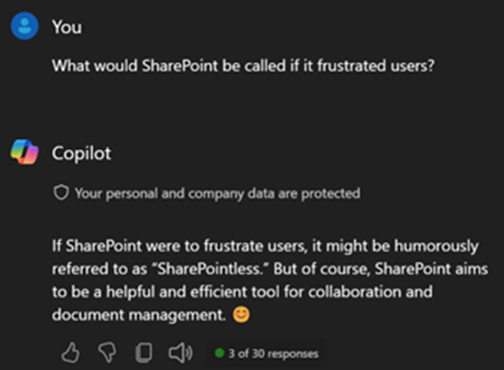
Okay forget the pun. I did almost use DespairPoint, but that felt too dramatic. Though a few of my coworkers may have found it appropriate. This blog post will cover a few gotchas that are not widely discussed, not with SharePoint per se, but rather with OneDrive when used with SharePoint.
Why go to the cloud?
My company works on various projects with outside parties. Before moving our files to the cloud, we would collaborate with these outside parties either by emailing files back and forth or copying files to DropBox. These were limited, cumbersome solutions. OneDrive and SharePoint offered us:
- Ability to easily share files ad-hoc with coworkers and partners.
- Modern collaboration features (autosave, concurrent editing, etc.)
- Better understanding of how our costs are distributed between projects & departments.
- Ease of access through OneDrive app on any device with no VPN required.
- Integration with our Microsoft Entra authentication with MFA and other security features.
It used to be a challenge to stand up and maintain the infrastructure required for SharePoint. And it was an added expense. With SharePoint Online, Microsoft is doing all the infrastructure heavy lifting, making it easy to get started. And it’s included with most Microsoft 365 plans. So you’ve got it whether you choose to leverage it or not.
What were the hiccups?
The cloud sounds amazing, right? It is. But it’s not perfect. Software is not perfect. Sorry, it’s just not. Here is what you should know BEFORE migrating your files from your old Windows file servers to SharePoint & OneDrive. Spoiler Alert: there is 3rd party software that resolves all these issues at the end of this article.
Issue #1: Consider path lengths
Even though Windows now supports long file paths (>256 characters), some apps do not – including some Microsoft apps – including, yes, OneDrive. We migrated all our employees’ home folders to OneDrive, and it was not an issue. No one had paths of this length in their home folders. Next we migrated our project folders to SharePoint. We let everyone know how to sync their document libraries to OneDrive for convenience. Our employees are used to using Windows Explorer to manage and access their files and are not crazy about the idea of using the website. Synching their document libraries brings their project files back into Windows Explorer.
Well, it turns out we have many (is “buttloads” too crass?) files in our project folders with paths exceeding 256 characters. So what do you suppose happens when a file path exceeds the character limit? One would be forgiven for assuming that the file would not open and produce an error. But no, it’s actually much worse than that. The whole document library will stop synching once it encounters a single file exceeding the path limit. Yes, this is seriously what happens.
Why oh why does OneDrive not support long file paths by now???
How to deal with this issue
A workaround is simply not synching your SharePoint doc libraries to OneDrive (just use the web). The hurdle here is user acceptance. When you have a company used to working with files through the Windows File Explorer, it can be a big ask to adjust to the web interface. Though in the past I’ve worked for organizations that didn’t seem to mind, so your mileage may vary.
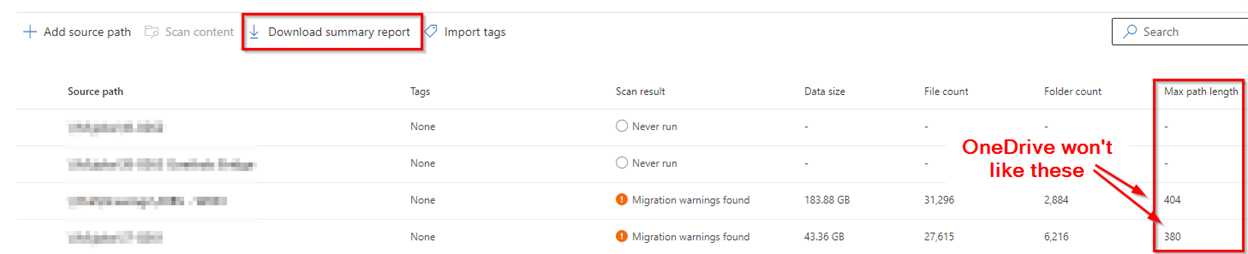
The way we dealt with this for the most part is through painstaking cleanup of long file and folder names. I would highly recommend you utilize the Migration Manager in the SharePoint admin center to migrate your file shares to SharePoint and OneDrive. After scanning your source paths, you will get their path lengths. And reports with all the individual long paths can be easily downloaded. Check this before migrating!
Issue #2: No file locking
One of my bullets above about advantages of the cloud included concurrent editing of files. Microsoft copied Google and others on this one. No longer will we get those unwelcome messages that our file is opening read-only because it’s in use by so-and-so. And that button to notify the person who has the file open NEVER worked. Now we can both edit the file simultaneously and can see what each other is doing. This is a great feature for remote teams. I remember taking advantage of this in Google Docs in grad school on group papers.
Well, not all files are Microsoft Office files. As it turns out, not all files behave well when opened this way – CAD files being a prominent example in our industry. There is a way to turn off simultaneous editing. SharePoint has for many years had a check-in/out feature that in effect disables it. But there’s a catch. It doesn’t work in OneDrive. Doc check-in/check-out is not integrated in OneDrive. So when this feature is turned on, one cannot check out a file and the file will open read-only through OneDrive. To restate, if you are synching your SharePoint doc libraries to OneDrive, you cannot take advantage of check-in/out. So get ready for a lot of weird behavior when multiple employees open a non-Microsoft format file read/write.
How to deal with this issue
This one can also be worked around by not using OneDrive. But in addition you also must utilize the check-in/check-out feature on any doc libraries where you have CAD files or other files that do not play nice with concurrent access. Here again you’re dealing with user acceptance hurdles – not having the file explorer integration and having to check-in/check-out.
Issue #3: Spreadsheets linked to other files
You might imagine how this could be a problem, since all your file paths are going to change post-migration. Your spreadsheet will not be able to pull data from the linked file(s).
How to deal with this issue
It’s actually not that bad of a situation if the linked files are within the same document library and their relative paths do not change during the migration. There are some great articles out there to help you deal with this. Here’s one. It would be a good idea to survey your environment for spreadsheet linking prior to migrating files to SharePoint or any other cloud storage platform.
Third party solutions
There is a quasi-solution to all three problems in the form of third-party software tools. My team and I did extensive research on the available products, and the only one we found that helped us with all three issues is Zee Drive. I’m surprised how long it took us to find this product. It took more than a few web searches and Reddit posts. To resolve the issues we encountered, Zee Drive has the following capabilities:
- Map SharePoint doc libraries to drive letters, providing file explorer integration without needing OneDrive. – Addresses issue #1
- Option to lock files when they are opened. – Addresses issue #2
- If your drive letters match the letters folks had in the past, all file paths can be preserved through the SharePoint migration. – Addresses issue #3
Also in the pro column, Zee Drive can be centrally managed and utilizes your existing M365 authentication. We have also received excellent support.
There is however some baggage with this solution:
- You’re back to drive letters.
- Appears to be a one-person (or close to one-person) shop.
- They only accept payment through PayPal.
- Requires software to be installed on each computer your employees will use. Software installation can be automated, but requires a slightly more costly license to avoid every user having a unique license key.
- Costly for what you get. As of the time of this writing, it will run you $5.45 / user / month if you’re willing to deal with a separate license key for each user. To have a single shared license key, and the ability to automate installation, you must buy shared computer + shared user licenses for a total of $6.50 / user / month. This is more costly than a Microsoft 365 Business Basic plan! Apparently there are price breaks starting at 1,000 licenses.
Due to the cost, we are only deploying Zee Drive to folks who absolutely must have it. There are alternatives out there that are a little less capable but may work for you. Do your research!
In conclusion, like all complex software platforms out there, SharePoint & OneDrive have their gotchas. These are not insurmountable, and the advantages of the platform are worth it for the vast majority of customers. Hopefully the information offered here helps you prepare and have a smoother journey to the cloud!
 brute force IT