
For IT generalists like me, who work in a wide breadth of disciplines and tackle different types of challenges day to day, Wireshark is kind of like the “Most Interesting Man in the World” from the Dos Equis beer commercials. Remember how he doesn’t usually drink beer, but when he does it’s Dos Equis? Well I don’t usually need to resort to network packet captures to solve problems, but when I do I always use Wireshark! Dos Equis is finally dumping that ad campaign by the way.
The ability to capture raw network traffic and perform analysis on the data captured is an absolutely vital skill for any experienced IT engineer. Sometimes log files, observation and research aren’t sufficient. There is always blind guessing and intuition, but at some point a deep dive is needed.
This tale started amidst a migration of all our VMs – around 130 – from one vSphere cluster to another. We have some colo space at a data center and we’ve been moving our infrastructure from our colo cabinets to a “managed” environment in the same data center. In this new environment the data center staff are responsible for the hardware and the hypervisor. In other words it’s an Infrastructure as a Service offering. Over the course of a couple months we worked with the data center staff to move all the VMs using a combination of Veeam and Zerto replication software. One day early in the migration, our Help Desk started receiving reports from remote employees that they could not VPN in. What we found was that for periods of time anyone trying to establish a new VPN connection could not. It would just time out. However if the person kept trying and trying (and trying and trying) it would eventually work. Whenever I get reports of a widespread infrastructure problem I always first suspect any changes we’ve recently made. Certainly the big one at the time was the VM migrations, though it wasn’t immediately obvious to me at first how one might be related to the other.
Our remote access VPN utilizes an old Juniper SA4500 appliance in the colo space. Employees use either the Junos Pulse desktop application or a web-based option to connect. I turned on session logging on the appliance and reproduced the issue myself. Here are excerpts from the resulting log.
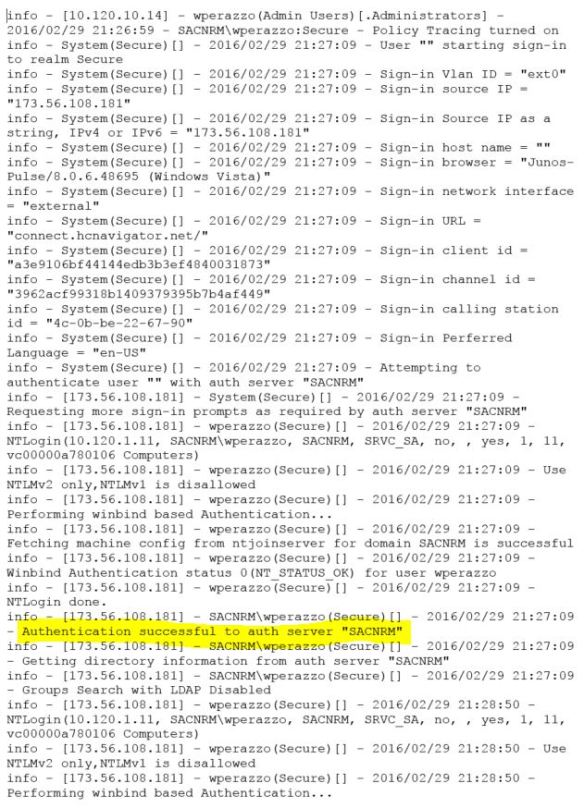
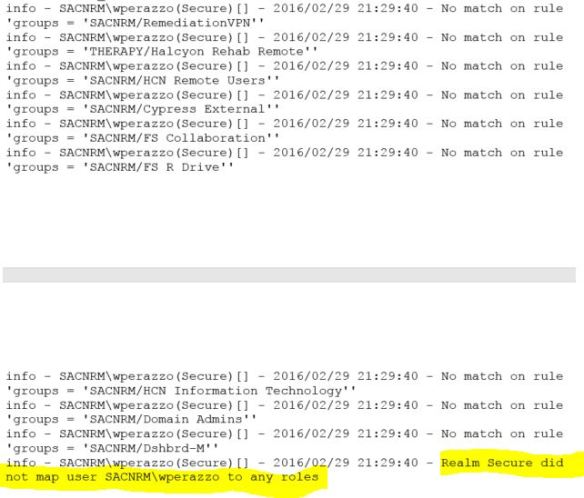
The first highlighted line shows that I was authenticated successfully to a domain controller. The second highlighted line reveals the problem. My user account did not map to any roles. Roles are determined by Active Directory group membership. There are a couple points in the log where the timestamp jumps a minute or more. Both occurrences were immediately proceeded by the line “Groups Search with LDAP Disabled”.
A later log, when the problem was not manifesting itself, yielded this output.
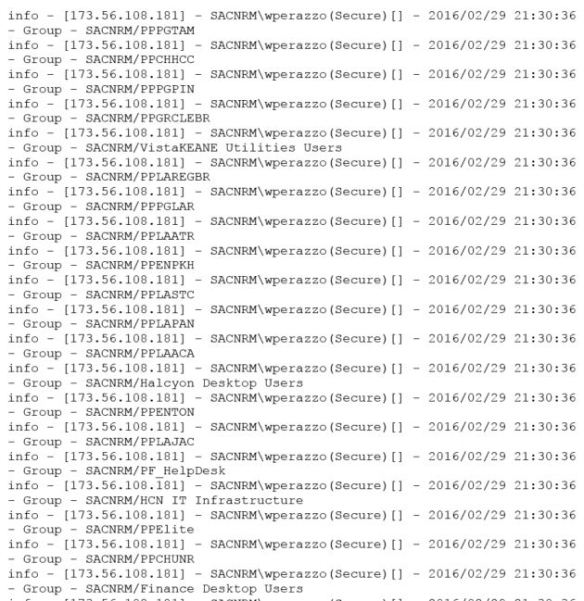
There are many lines enumerating my user account group membership. After this, it maps me to my proper roles and completes the login. So it appears that the VPN appliance is intermittently unable to enumerate AD group membership.
We had migrated two domain controllers recently to the managed environment. I made sure the VPN appliance had good network access to them. We extended our layer 2 network across to the managed environment, so the traffic would not traverse a firewall or even a router. No IPs changed. I could not find any issue with the migrated DCs. Unfortunately the VPN logs did not provide enough detail to determine the root cause of the problem.
As I poked around, I noticed that the VPN appliance had a TCPDump function. TCPDump is a popular open source packet analyzer with a BSD license. It utilizes libpcap libraries for network packet capture. I experimented with the TCPDump function by turning it on and reproducing the problem. The VPN appliance will then produce a file when the capture is stopped. This is when I enlisted Wireshark – to open and interrogate the TCPDump output file. The TCPDump file, as expected, contained all the network traffic to and from the VPN appliance. It should be noted that I could have achieved a similar result by mirroring the switch port connected to the internal port of the VPN appliance and sending the traffic to a machine running Wirehark. Having the capture functionality integrated right into the VPN appliance GUI was just more convenient. Thanks Juniper!
I was able to basically follow along the sequence I observed in the VPN client connection log, but at a network packet level. Hopefully this level of detail would reveal something I couldn’t see in the other log. As I scrolled along, lo and behold I saw the output in the excerpt below.
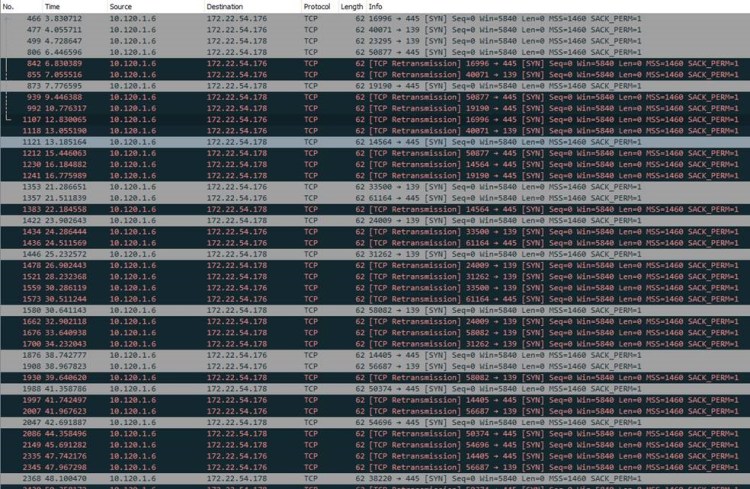
The VPN appliance is sending and re-transmitting unanswered SYN packets to two IPs on the 172.22.54.x segment. “What is this segment?” I thought to myself. Then it hit me. This is the new management network segment. Every VM we migrate over gets a new virtual NIC added on this management segment. I checked the two migrated domain controllers, and their management NICs indeed were configured with these two IPs. And there is no way the VPN appliance would be able to reach these IPs, as there is no route from our production network to the management network. The new question was WHY was it reaching out to these IPs? How did it know about them? And that’s when I finally checked DNS.
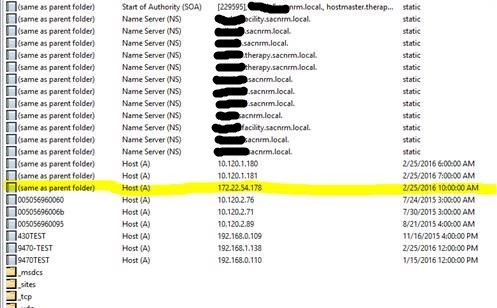
This is the zone corresponding to one of the migrated DCs. I’ve redacted server names. As you can see the highlighted entry is the domain controller’s management IP. The server registered it in DNS as a glue record. Any host doing a query for the domain name itself, in this case therapy.sacnrm.local, has a one in three chance of resolving to that unreachable management IP. Then I found this.
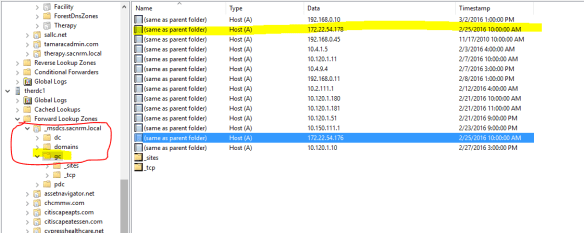
The servers were also registering the management IPs as global catalogs for the forest. This was what was tripping up the VPN appliance. It was performing a DNS lookup for global catalogs to interrogate for group membership. The DNS server would round-robin through the list and at times return the management IPs. The VPN appliance would then cache the bad result for a time and no one could connect because their group membership could not be enumerated and their roles could not be determined. This is a good point in the series of events to share a dark secret. When I’m working hard troubleshooting an issue for hours or days, there is a small part of me that worries that it’s really something very simple. And due to tunnel vision or me being obtuse, I’m simply missing the obvious. I would feel pretty embarrassed if I worked on an issue for two days and it turned out to be something simple. It has happened before and this is where a second or third set of eyes helps. At any rate, this was the point when I realized that the issue was actually somewhat complicated and not obvious. What a relief!
For my next move I tried deleting the offending DNS records, but they would magically reappear before long. Having now played DNS whack-a-mole, I do not think it would do well at the county fair. I’d rather shoot the water guns at the targets or lob ping pong balls into glasses to win goldfish. My research led me to learn that the NetLogon service on domain controllers registers these entries and will replace them if they disappear. Here’s a Microsoft KB article on the issue. There is a registry change that prevents this behavior. We had to manually make this change on our DCs to permanently resolve the issue.
So this was a couple days of my life earlier this year. I was thrilled to figure this out and restore consistent remote access. Of course in hindsight I wish I had checked DNS earlier. And I was a bit disappointed that our managed infrastructure team was not familiar with this behavior. But it was a great learning experience and Wireshark surely saved my bacon. Time for a much deserved Dos Equis! Stay thirsty my friends.
 brute force IT