
The virtual Meraki MX (vMX) is no doubt a powerful and useful way to extend your Meraki SD-WAN into the public cloud. My company utilizes two of these virtual appliances in Azure, one in our production server network and one in our disaster recovery environment.
I cannot speak for the vMX in AWS, GCP or any other public cloud. But one major distinction between the vMX in Azure and a physical MX is that the vMX isn’t really a firewall. It’s meant to be used as a VPN concentrator, not the gateway to the Internet. It has a single interface for ingress and egress traffic. This aspect of the vMX, while crucial to understand, is not what this post is about.
Gotcha #1 – So you want your Remote Access VPN to actually work?
Our employees with laptops and other portable computers utilize VPN for remote access. When we migrated our servers to Azure it made sense to migrate the remote access VPN concentrator functionality from the physical MX in our main office to our vMX in Azure. We performed the setup on the vMX, but it would just not work. We came to find out that this functionality will only work if the vMX is deployed with a BASIC PUBLIC IP. The default public IP attached to the vMX is a standard. You cannot change this or attach a new interface once the vMX is deployed. In fact, you will not even see an option in the appliance setup wizard to deploy with a basic public IP. The answer to this conundrum cannot be found in Meraki’s published deployment guide for the vMX. It can be found deep in a Meraki forum post:
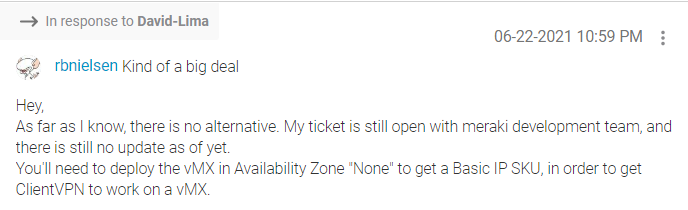
You read that right. To get the Basic IP (and a working RA VPN), you’ll need to keep the vMX from being deployed into an availability zone. Straightforward, huh?
Gotcha #2 – The location of your RADIUS server is important
This one also relates to the remote access VPN functionality. When we finally got the RA VPN working in our production environment, the RADIUS server was living in the same vNet as the vMX. And all was right with the world. Then we deployed a second vMX in our DR environment, in another Azure region and vNet. To test the RA VPN functionality, we attempted to utilize the production RADIUS server in the production vNet.
After submitting the user password, it would just time out. Packet captures from the vMX revealed the RADIUS requests from the vMX had source IPs from an unexpected public IP range. After much troubleshooting with Meraki support, it came to light that these public IPs are from the RADIUS testing functionality of Meraki wireless access points. This is some sort of a bug that manifests itself when the vMX is deployed in VPN concentrator mode. Meraki support suggested I could get this to work if I put the vMX in NAT mode. Supposedly new vMX’s are deployed in NAT mode by default anyway. So we put the vMX in NAT mode and sure enough, this resolved the issue. The RADIUS requests were now being sourced from the “inside” IP address of the vMX and reached the RADIUS server. And that’s when I noticed another gotcha……
Gotcha #3 – NAT Mode vMX Must be an Exit Hub
The vMX in NAT mode is some sort of paradox. The thing has one interface! Here’s the problem. When the vMX (or an MX) is in VPN concentrator mode, one can simply add networks to advertise across the autoVPN on the Site-to-Site VPN page.
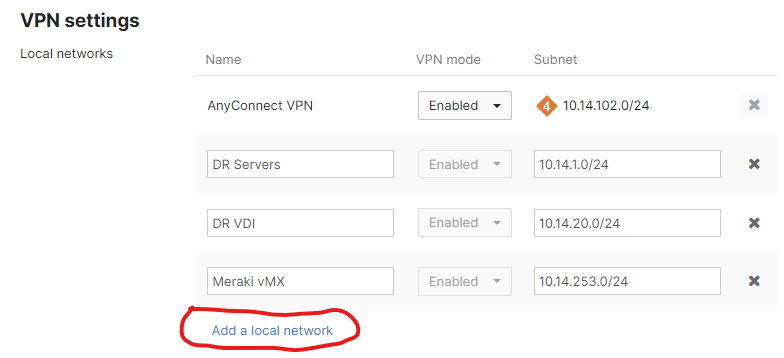
However, in NAT mode, the option to Add a local network is not there. The vMX (or MX) will advertise whatever networks are configured on the Addressing and VLANs page, either as VLANs or static routes.
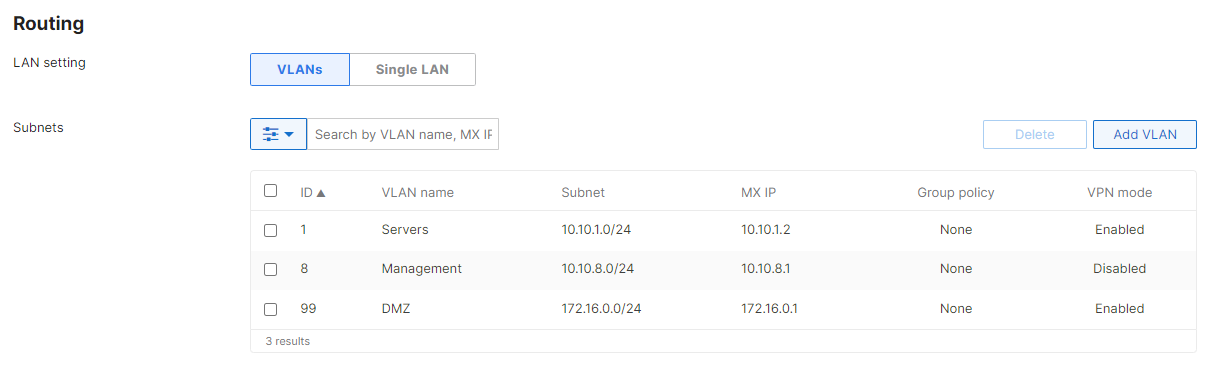
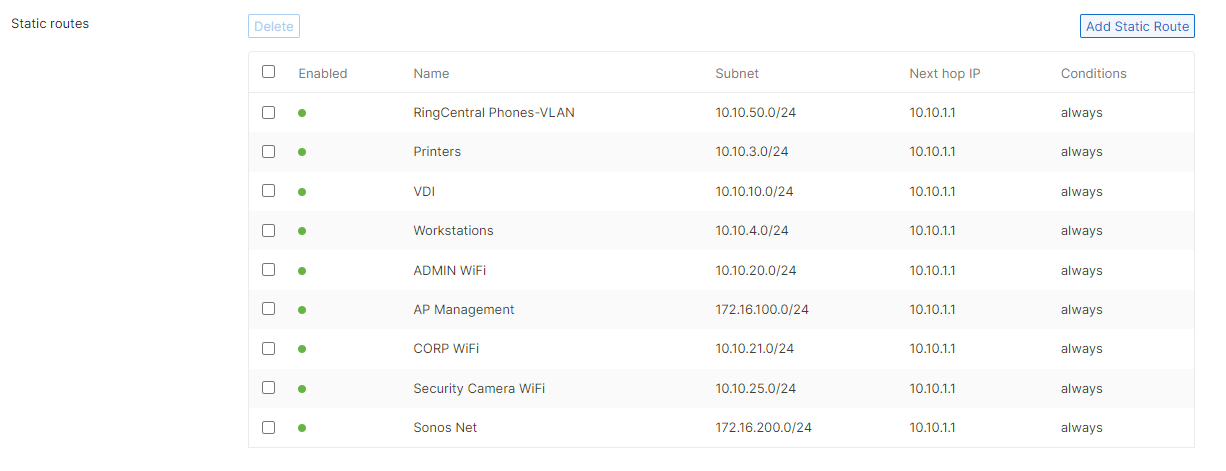
The Meraki guide for vMX NAT mode says that one must not configure VLANs on the device.

I tried this anyway, and let’s just say it won’t work. I’ll spare you the gory details.
That left only the option of adding static routes to the subnets sitting “behind” the vMX. These are the subnets in the vNet containing our servers and VDI hosts. Since the default LAN configured in Addressing and VLANs is fictitious, the vMX complained that the next hop IP of the routes is not on the any of the vMX’s networks. When I modified the LAN addressing to reflect the actual addressing of the vMX’s subnet in the vNet, I was able to add the routes, but traffic to and from these subnets went into a black hole. I guess the note in the article with the red exclamation point is legitimate.
Next I contacted Meraki support. It came to light, via internal documentation I have no access to, that the only way for hosts from other Meraki dashboard networks to reach the subnets behind the vMX is to use full tunneling. In other words, the other (v)MX’s would need to use this vMX as an exit hub and tunnel all their traffic to it, including Internet-bound traffic and traffic destined for other Meraki networks. That is unfortunately not going to work for us.
So at the end of the day we left the vMX in our DR environment in VPN concentrator mode. In the event of an actual disaster, or a full test, the RADIUS server will be brought up in the DR environment. So the RA VPN will work.
This was a tremendous learning experience. But it was unfortunate how much time was wasted due to lack of documentation of these limitations.
 brute force IT